Lives in the menu bar
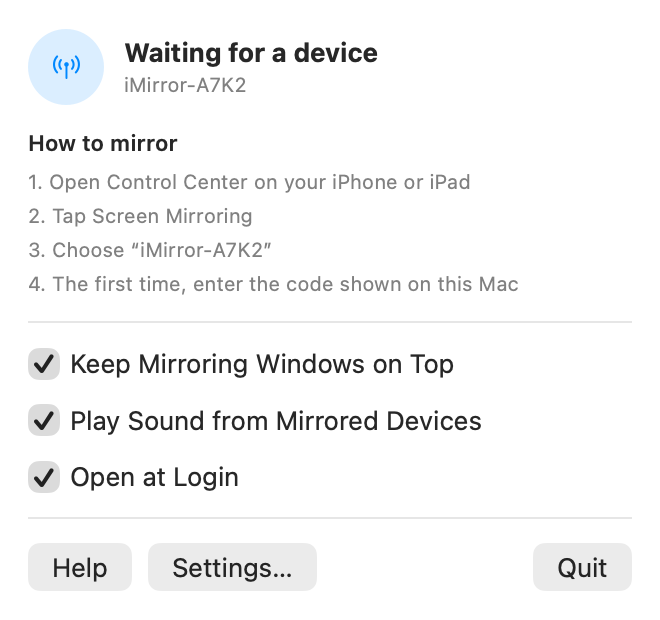
No Dock icon, nothing in the way. Click the menu bar icon for status, mirroring steps and quick switches.

Mirror your iPhone and iPad to your Mac
iMirror is a free, open-source AirPlay screen mirroring receiver for macOS. It sits quietly in the menu bar; tap Screen Mirroring in Control Center on your iPhone and the picture appears in a floating window on your Mac that can stay on top, with sound.

Uses the Screen Mirroring built into iOS, iPadOS and macOS. Nothing to install on the phone.
No Dock icon, nothing in the way. Click the menu bar icon for status, mirroring steps and quick switches.
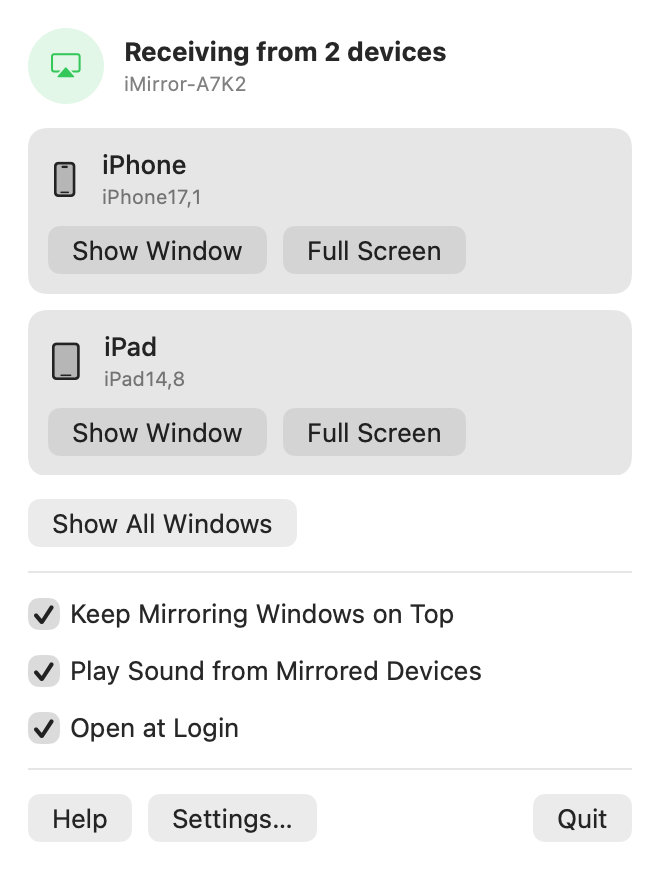
Mirror an iPhone, an iPad and another Mac at the same time. Each gets its own window and decoder; one disconnecting doesn’t affect the others.
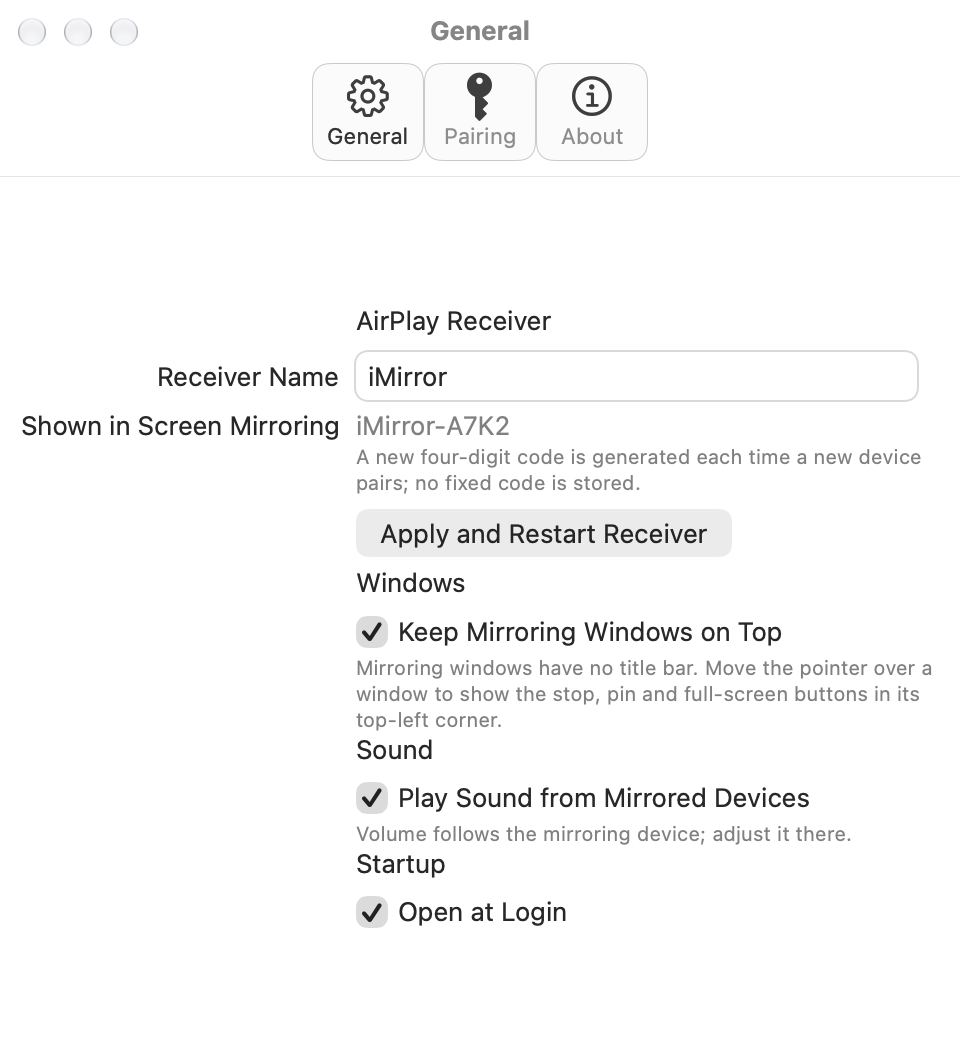
Borderless, freely resizable windows. Stop, pin and full-screen buttons appear on hover. The aspect ratio is kept through rotation and full screen.
H.264 decoded by VideoToolbox in hardware and drawn straight with Metal, up to 1920×1080 at 60 fps, with low latency and little CPU.
Plays the device’s audio (AAC-ELD, AAC-LC, ALAC, PCM) following its volume. Turn it off in the menu when you don’t need it.
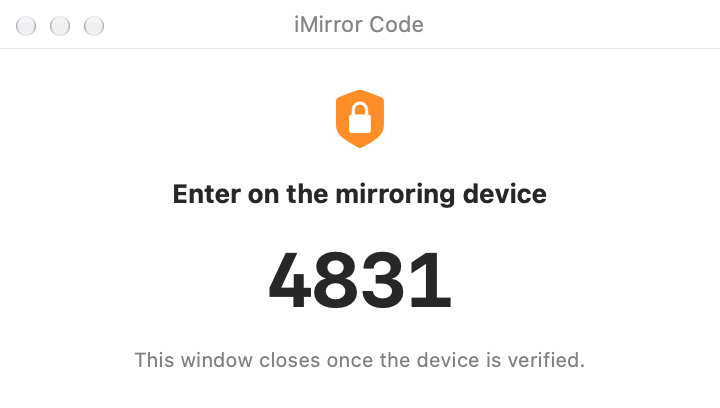
A new random four-digit code appears on the Mac the first time a device connects; no fixed password is stored. Verified devices reconnect directly, and you can forget them all at once.
Optionally opens at login; stops advertising while the Mac sleeps and comes back on wake. The receiver name carries a per-Mac tag, so several Macs never get mixed up.
The interface follows your system language in English or Simplified Chinese. Source code under the GPLv3; no ads, accounts or analytics.
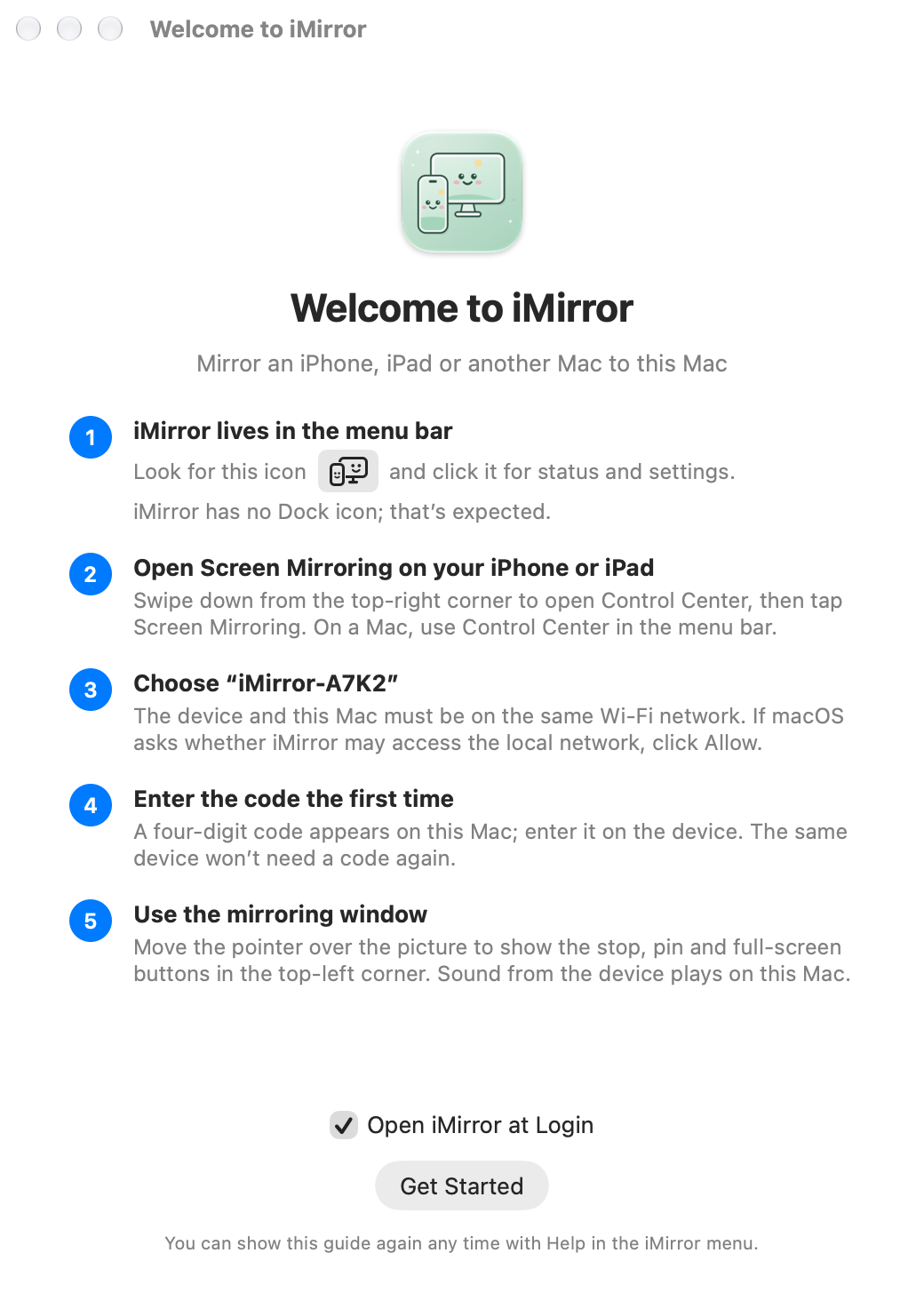
The app’s real interface, shown in your system’s light or dark appearance. Click an image to see it full size.
Requires macOS 14 Sonoma or later. One download runs on both Apple silicon and Intel Macs.
Get the latest iMirror-<version>-macOS-universal.dmg from GitHub Releases.
Open the DMG, drag iMirror onto the Applications folder, then eject the disk image.
Releases aren’t notarized by Apple, so macOS blocks the first launch. Allow it once as described under If macOS blocks the first launch.
Click Allow when macOS asks on first launch; otherwise your iPhone can’t find the Mac.
xattr -dr com.apple.quarantine /Applications/iMirror.appA small icon (a phone and a display) appears in the menu bar. iMirror has no Dock icon; that’s expected.
Swipe down from the top-right corner to open Control Center, then tap Screen Mirroring. On a Mac, use Control Center in the menu bar.
For example iMirror-A7K2. The device and the Mac must be on the same Wi-Fi network.
Type the four digits shown on the Mac. The same device won’t need a code again.
That’s caused by the download quarantine flag; the file isn’t actually damaged. Run xattr -dr com.apple.quarantine /Applications/iMirror.app in Terminal and open it again.
Mirroring data only travels over your local network between your device and the Mac. iMirror needs no account and has no ads or analytics; a new device must enter the code shown on the Mac before it can connect. The full source is on GitHub for you to review and build.
The current version receives H.264 screen mirroring at up to 1920×1080 and 60 fps, with sound while mirroring. HEVC and 4K aren’t supported yet. Feature requests are welcome as GitHub issues.
~/Library/Application Support/iMirror and run defaults delete com.erniu.imirror in Terminal.Please open an issue on GitHub. Including your macOS version, Mac model, the mirroring device and what happened helps a lot. Code and translations are welcome too.
iMirror’s protocol layer is based on the open-source UxPlay, and iMirror as a whole is released under the GNU GPLv3. AirPlay, iPhone, iPad and Mac are trademarks of Apple Inc.; iMirror is not affiliated with Apple.